India

Quick answer
A secure WordPress site needs eight things: one person responsible for updates, WordPress, plugins, themes and PHP kept current, off-server backups, unused plugins and accounts removed, two-factor login for administrators, limited login attempts, a firewall, and alerts when files change.
Key takeaways
- Name one person responsible for updates, because everything else depends on it.
- Plugin updates do not update PHP, so check both.
- 91% of new WordPress vulnerabilities found in 2025 were in plugins, according to Patchstack.
- Delete what you do not use, because deactivating is not removing.
- Ten minutes a month is enough to catch most problems early.
Jump to section
One small business website we look after had 32 failed login attempts in a single day, from about 12 different IP addresses. They were trying usernames that don’t exist on the site. Nothing got in, and that’s a normal day online. Bots try every site, however small.
You don’t need to become a security expert to protect your business. You need the right things in place and someone responsible for them. Here’s the website security checklist we’d want on any business site running WordPress. You can do some of it yourself and hand the rest to your developer.
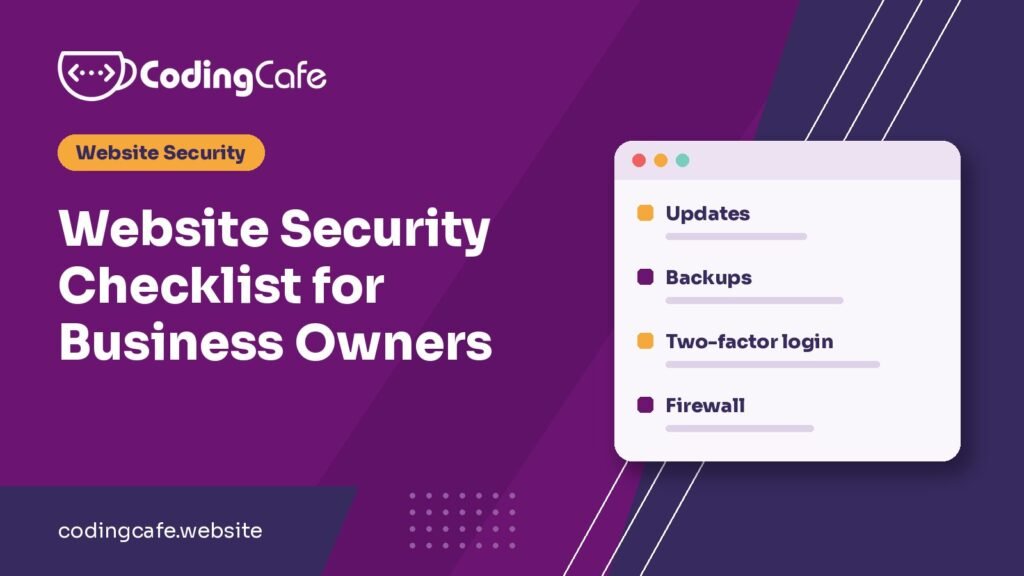
The 8-point checklist
One basic comes before the list: your site should load over HTTPS, with no certificate warnings in the browser. Many hosts include a free SSL certificate, so if yours doesn’t show the secure connection, ask them first.
1. One named person responsible for updates
This comes first because everything else depends on it. “I thought you were doing that” is how sites end up years out of date. Whether it’s a developer, an agency or a staff member, write down one name.
2. WordPress, plugins, themes and PHP kept current
Most people remember plugins. Fewer remember PHP, the software your site runs on, which is usually updated through your host. PHP2Shell showed why it matters: a site could be fully up to date in WordPress and still be exposed.
3. Backups stored away from the server
A backup on the same server can be lost or infected along with the site. Keep a copy elsewhere. Back up daily if you run a shop or take bookings, and at least weekly otherwise. Then test one, because a backup you’ve never restored is only a hope.
4. Unused plugins, themes and admin accounts removed
According to Patchstack’s State of WordPress Security in 2026 report, 91% of new WordPress vulnerabilities found in 2025 were in plugins, and another 9% were in themes. Also, 46% had no fix from the developer when they were made public.
So updating isn’t enough on its own. Delete what you don’t use, because deactivating isn’t the same as removing. Replace plugins that are no longer maintained. Remove admin accounts for people who’ve moved on.
5. Two-factor login for every administrator
A stolen password alone won’t get an attacker in if they also need a code from a phone. It takes a minute to set up with a free security plugin, and it’s among the best protections you can add for the effort.
6. Login attempts limited
Lock out an address after a handful of failed attempts, for example five. This stops bots from guessing all day. Use strong, unique passwords too, and keep them in a password manager.
7. A firewall in front of the site
A web application firewall can block many attacks before they reach WordPress. That’s useful for the flaws that have no fix yet. For heavily exploited flaws, Patchstack’s report puts the weighted median time to first exploit at just 5 hours, so waiting until you next log in isn’t fast enough.
8. Alerts when files change unexpectedly
Prevention sometimes fails, so you also need to find out quickly. File monitoring or scheduled scans can warn you within hours, not weeks. Make sure the alerts reach someone who will act on them.
Two more if you have several sites
- Check who shares your hosting account. On many shared plans, one infected site can reach the others. In one cleanup we handled, an old theme on one site led to 12 infected sites. Remove old copies and consider separating your most important sites.
- Block PHP in the uploads folder. Images and documents never need it, and it stops many uploaded attack scripts from running.
Your 10-minute monthly routine
- Search Google for
site:yourdomain.comand look for pages you never made. - Check your administrator list.
- Look at Site Health in WordPress under Tools, and confirm your PHP version is supported.
- Confirm the latest backup ran.
- Check for pending updates and any warnings in your security plugin.
Questions to ask your developer
- Who updates our site and server, and how often?
- Where are our backups, and when was one last restored as a test?
- Who gets security alerts, and what happens next?
- What would you do first if we were hacked tomorrow?
How many can you tick?
If you can’t tick all eight, or you don’t know who could tell you, that’s the useful thing to find out. If you think something has already gone wrong, here are the 7 signs of a hacked WordPress site and why malware keeps coming back.
If you want the actual settings behind each point, our step-by-step guide to hardening WordPress shows where to find them.
We can check where your site stands and explain the results without the jargon. Get in touch or message us on WhatsApp.
Website security checklist
0 of 8 done
Frequently asked questions
Is WordPress secure enough for a business website?
Yes, when it is maintained. Patchstack found that 91% of new WordPress vulnerabilities in 2025 were in plugins and 9% in themes, so most of the risk comes from what is added to WordPress and how well it is looked after.
Do I need a security plugin?
For most sites, yes. A good one can add a firewall, login limits, two-factor login and file scanning. It does not replace updates and backups.
How often should I back up my website?
Daily if you run a shop or take bookings, and at least weekly otherwise. Store a copy away from your server and test restoring one from time to time.
My site is small. Would anyone really target it?
Yes. Bots scan websites automatically and do not care about size. Small sites are useful for sending spam and hosting scam pages, and nobody is often watching them.
How much does WordPress security cost?
Many of the basics are free, including removing unused plugins, two-factor login and login limits. The ongoing cost is usually someone’s time for updates, backups and responding to alerts.
Ask us to check your website security
Tell us what you are building and we will suggest the simplest path that fits your budget and timeline. No obligation.