 India

Quick answer
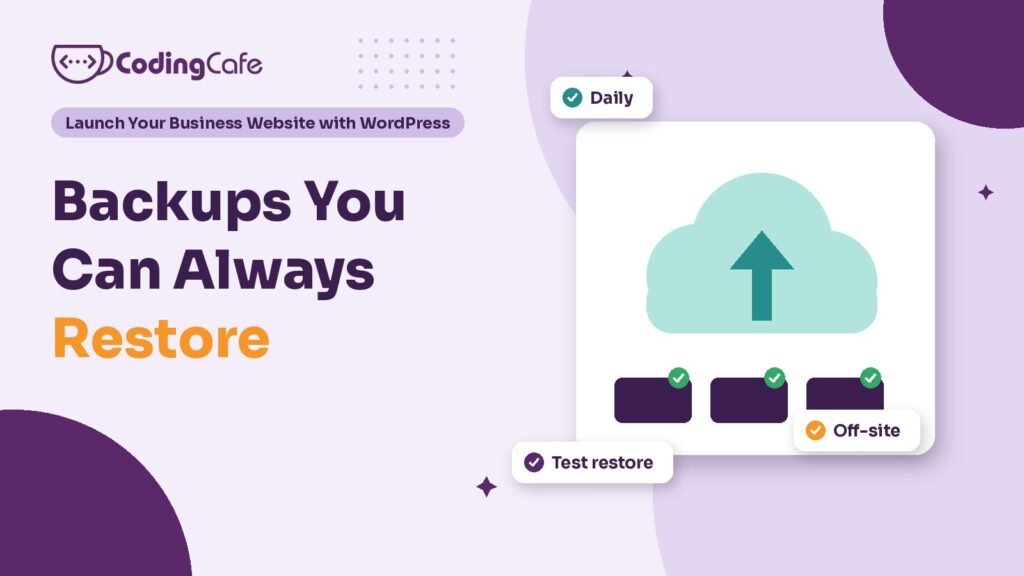
Back up both the database and the files. Back up the database daily if your site takes enquiries or orders, and always before updates. Keep at least one copy off the server, such as Google Drive, for thirty days or more, and test a restore onto a staging copy every few months so you know it works.
Key takeaways
- A WordPress backup needs both the database and the files; email, DNS and licence keys are separate.
- Match the schedule to how often the site changes, and always back up before updates.
- Keep at least one copy away from the host, in a private folder, because backups hold customer data.
- Keep backups for at least thirty days, since hacks are often found weeks later.
- Test a restore onto a staging copy every few months; an untested backup is only a hope.
Ask a business owner whether their website is backed up and the answer is nearly always yes. Ask where the backup is, how old it is, and when anyone last restored one, and the room goes quiet.
Most sites do have something called a backup. Far fewer have one that would actually bring the site back on a bad day: after a hack, a failed update, a hosting account that gets suspended, or a staff member who deletes the wrong page.
Everything in the security lesson lowers the odds of trouble. Backups are what decide how bad the trouble gets.
What Exactly Needs Backing Up?
A WordPress site lives in two places, and a backup needs both. Miss either one and the restore fails.
Then there are things a WordPress backup does not cover at all. Your business email, if it runs on Google Workspace or Zoho, is separate. So are your domain’s DNS settings, and the licence keys for premium plugins. Keep a short note of those somewhere safe: where the domain is registered, which DNS records matter, and which licences renew yearly and on which account.
How Often Should You Back Up?
As often as you would hate to lose the work since the last one. That depends entirely on how often your site changes.
- A site that rarely changes: weekly is usually enough, plus a backup before any update or edit.
- A site that collects bookings or enquiries: the database daily, because every day adds entries you cannot recreate.
- A shop: the database at least daily, more often in busy seasons, because orders arrive all day.
- Before any change: plugin updates, a theme change, a new feature. Always, whatever the schedule says.
Because the database is small and changes the most, it is normal to back it up more often than the files. Most backup tools let you set the two schedules separately.
Where Should Backups Be Kept?
Not only on the server they came from. This is the mistake that catches people out.
Most hosts include backups, and they are genuinely useful. But they sit with the same company, often in the same account, as the site itself. If that account is hacked, suspended over a billing problem, or locked because the person who owns the login has left, the site and its backups go together. Keep at least one copy somewhere else: Google Drive, Dropbox, or cloud storage such as Amazon S3. Most backup plugins can send copies there automatically.
Remember what is inside a backup. Every form entry, every customer name and phone number, sometimes every order. Store it like the sensitive file it is: a private folder that only the owner and the developer can open, never an “anyone with the link” share.
How Long Should You Keep Them?
Longer than you think. Hacks are often found weeks after they happen, and by then the last several backups contain the problem too. If you only keep a week of backups, you may have nothing clean left.
Keep daily or weekly backups for at least thirty days, and one monthly copy for a few months beyond that. Here is what a sensible plan might look like for a physiotherapy clinic in Kharar that takes appointment requests through its site:
Database: daily, kept 30 days — Files: weekly, kept 8 weeks — Monthly copy: kept 6 months — Before any update: a manual full backup — Stored: host backups plus a private Google Drive folder — Restore test: every three months, by the developer, noted in the log
It fits on one line, and anybody in the clinic can check it is happening. That is the point. A backup plan that only exists in a developer’s head is not a plan.
How Do You Test a Restore?
A backup you have not restored is a hope.
Files get cut off halfway because the hosting plan ran out of time. The database is missing. The backup went to a Drive folder whose login nobody remembers. You only find out on the day you need it, which is the worst possible day.
So restore one on purpose, every few months, onto a copy of the site rather than the live one. Many hosts offer a staging copy for exactly this, or your developer can use a spare subdomain. Then check the copy properly:
- Pages: the home page, a service page and a blog post all load and look right.
- Images: recent uploads are there, not broken boxes.
- Logins: you can sign in to the dashboard.
- Latest content: the most recent post or form entry from before the backup date is present.
- Time taken: note how long the whole restore took, so you know what a real emergency would cost.
One more test hides inside this one. If WordPress itself is down, can you still restore? A backup made by a plugin usually needs that plugin, which needs a working WordPress. Make sure someone knows where the raw files are and how to restore them from the hosting panel. Write those steps on one page and keep it with the account details.
Which Backup Tool Should You Use?
For most small business sites, two layers are enough: the host’s own backups, plus one backup plugin that sends copies off the server. UpdraftPlus is a common free choice that can send backups to Google Drive. Paid tools add features such as incremental backups and easier restores, and their licences renew yearly like other premium plugins.
Do not run two backup plugins at once. They compete for the same server resources and often both fail on a shared plan. If your site is large, with years of photos and PDFs, backups can time out on cheap hosting, which is one more reason to test them. We set up and test backups as part of our WordPress development and maintenance work, and the same rules apply whoever does it for you.
Can a Backup Fix a Hacked Site?
Sometimes, but not on its own. Restoring a backup puts the files back as they were. If the backup was taken after the attacker got in, it brings their files back with it. And even a clean backup leaves the original weakness open, so the same thing can happen again within days.
A restore also throws away everything since the backup date: new enquiries, orders, posts. A clean restore is a good tool in a proper cleanup. It is not a cleanup by itself.
What Comes Next?
The last lesson in this module is the one we hope you never need: what to do if your WordPress site gets hacked. It covers the first hour, a proper cleanup, why sites get reinfected, and the spam pages that can linger in Google and Bing afterwards.
Check what you learned
3 quick questions. Pick an answer and see why.
Why is a backup stored only with your host not enough?
Keep at least one copy with a different provider, such as Google Drive, so one problem cannot take everything.
Why keep backups for at least thirty days?
A longer history gives you a better chance of a backup from before the attacker got in.
What is the safest way to test a backup?
A file that exists may still be incomplete. Only a real restore, done away from the live site, proves it works.
You finished Lesson 3
Up next · Lesson 4 Your WordPress Site Got Hacked: What to Do First Read the next lesson Previous: Lesson 2 · WordPress Security Basics Every Owner Should Set Up
Planning a WordPress website?
We build fast, secure WordPress sites for businesses and look after them after launch. Tell us what the site must do and we will suggest the simplest build that fits.

