 India

Quick answer
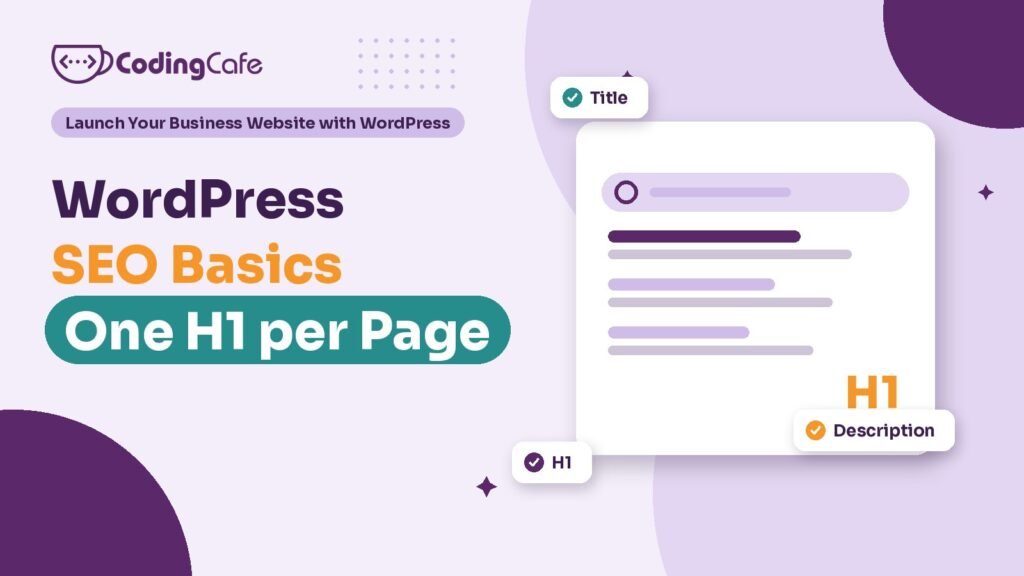
Basic WordPress SEO comes down to four things on every important page: a unique title of about 60 characters with the service and place near the front, a meta description that gives a reason to click, exactly one H1, and a short readable URL. Use one SEO plugin, such as Rank Math, and check the theme adds no second H1.
Key takeaways
- Title, meta description, H1 and URL slug tell Google and searchers what a page is about.
- Use one SEO plugin only, and make sure WordPress is not set to discourage search engines.
- Write titles as service, place, brand; write descriptions as the reason to click.
- Keep one H1 per page; themes and page builders often add a second without you noticing.
- Fix the pages that bring enquiries first, and date each change so you can see the effect.
Search for a dentist in Kharar and look at the results for a minute. Some say “Home” in the blue link. Some say “Just another WordPress site”. A few say exactly what the clinic does and where it is, with a line underneath that makes you want to click.
Those last few are not cleverer businesses. Somebody just spent twenty minutes per page on the basics.
This module is about the first job from Lesson 1: being found. It starts with the part you control completely, the words on each page and the tags around them. No tricks, no paid tools, nothing a business owner cannot check alone.
What Does Google Actually Read on a Page?
Google reads everything it can reach, but a handful of places tell it most clearly what a page is about. They are also the places a searcher sees first, which is why they matter twice.
Get these four right on every important page and you are ahead of most small business sites in the tricity. Everything else in this lesson supports them.
Which SEO Plugin Should You Use?
WordPress on its own gives you little control over titles and descriptions, so you need an SEO plugin. Rank Math and Yoast SEO are the two most people use. Both do the basics well. We use Rank Math on most builds, including this site, so the steps below follow it, but the ideas carry over.
Pick one and only one. Two SEO plugins fight over the same tags and you end up with two titles or two sets of schema on every page. We covered why fewer plugins is better in the plugins lesson, and this is a clear case.
Run the setup wizard, then check three settings before touching any page:
- Site name and separator: your business name as customers say it, not the legal company name.
- Archive pages: set tag archives, date archives and author archives on a one-person blog to noindex. They are thin copies of your posts.
- Settings, Reading: in WordPress itself, make sure “Discourage search engines from indexing this site” is unticked. It is often left on after a build, and it hides the whole site.
How Do You Write a Title That Gets Clicked?
A good title says what the page offers, where, and who you are, in that order. Keep it to about 60 characters so it is not cut off. Put the words people actually search near the front.
Take a dental clinic in Kharar with a page about root canal treatment. The default title from the theme is usually the page name and the site name, which wastes the space:
Before: Root Canal – Smile Care — After: Root Canal Treatment in Kharar | Smile Care Dental Clinic
The second one matches what a patient types, names the town and still carries the brand. It is not stuffed. One service, one place, one name.
A few rules keep titles honest. Every page gets its own title; two pages with the same title compete with each other. Do not repeat the keyword three times. And do not promise what the page does not deliver, because a visitor who bounces straight back to Google teaches you nothing good.
Google sometimes rewrites titles it thinks are unhelpful. The best defence is a title that already describes the page plainly.
What Makes a Good Meta Description?
Think of the description as the reason to click, written for a person deciding between ten results. Around 140 to 160 characters fits on most screens. Say what you offer, add one detail that sets you apart, and end with the next step.
For the clinic, something like “Painless root canal treatment in Kharar with same-week appointments. See the steps, the price range and book on WhatsApp.” It is specific, it answers a worry and it points to the action the clinic wants.
Only claim what is true. If you do not have same-week slots, do not say so. Google may also show a different line from your page if it fits the search better, which is another reason to write the page itself clearly.
Why Should a Page Have Only One H1?
The H1 is the headline of the page. One headline makes the topic obvious to a visitor, to a screen reader and to Google. Below it, H2 and H3 headings break the page into sections, like chapters under a book title.
To be fair, Google has said it can cope with more than one H1. But one clear H1 is still the cleaner page, and accessibility checkers and SEO audit tools will flag two. More to the point, a second H1 is usually a sign that the page structure was never checked.
The trouble is that you rarely add the second one yourself. It comes from the theme or the page builder:
- The site title: some themes wrap your logo or business name in an H1 on every page, so every page has the same H1 before your real one.
- The page title: the theme prints the WordPress page title as an H1, and your page builder design adds another big heading under it.
- A heading widget: in Elementor and similar builders, someone sets a heading widget to H1 because it looked the right size. Size belongs in the style settings, not the tag.
- Templates: a header, footer or popup template with an H1 inside it adds one to every page that uses it.
Checking takes a minute. Open the page in Chrome, right-click, choose View Page Source, press Ctrl+F and search for <h1. If you see more than one, find where each comes from. Change the extra ones to H2 or a plain paragraph styled to look the same.
Count your H1s. The answer should be one.
What Else Belongs on the Basic Checklist?
Titles, descriptions and the H1 do the heavy lifting. A few smaller habits make each page easier to understand and keep you out of trouble later.
- Permalinks: set to “Post name” in Settings before you publish anything. Changing them later breaks every link unless you add redirects.
- Images: name the file sensibly, compress it, and write alt text that describes the picture, such as “dentist explaining an X-ray to a patient”.
- Internal links: link from each blog post or related page to the service it supports, with words that describe the service, not “click here”.
- One topic per page: if two pages target the same search, merge them or make each clearly different.
- Real content: a service page with two lines on it will not rank, however good the title. Lesson 2.3 on writing service pages covers what to put there.
Rank Math shows a score while you edit a page. Use it as a reminder list, not a target. A page that reads well to a patient at 75 beats a page twisted to hit 100.
How Do You Work Through Your Own Pages?
Start with the pages that bring enquiries: the home page, each service page and the contact page. Blog posts can wait. For the clinic that might be eight pages, an afternoon’s work.
The template below gives you one row per page, with columns for the title, its length, the description, the H1 count, the slug, alt text and internal links, plus a column to tick when the page is done. Fill in the page list from Lesson 1.2 first, then work across each row. When you change something, write the date. In a month you can look at Search Console and see whether the pages you fixed are being shown more.
If you would rather have this set up properly from the start, with the theme and templates checked for stray H1s, it is part of how we handle WordPress development for small businesses.
What Comes Next?
Your pages now say clearly what they are about. For most local businesses, though, the first thing a customer sees is not your website at all but the map. The next lesson covers local SEO with Google Business Profile and city pages, and how to make the profile and the site back each other up.
Check what you learned
3 quick questions. Pick an answer and see why.
Which title is best for a dental clinic's root canal page?
It names the service and the place near the front and still carries the brand, without stuffing.
Where does a second H1 on a WordPress page most often come from?
Themes often wrap the site title or page title in an H1, and builders let a widget be set to H1 for its size.
What does the meta description mainly affect?
The description is not a strong ranking signal on its own, but it is the reason a person picks your result over the next one.
You finished Lesson 1
Up next · Lesson 2 Local SEO: Google Business Profile and City Pages Read the next lesson Previous: Lesson 5 · Plugins: Which Ones You Need and Which Ones Hurt
Planning a WordPress website?
We build fast, secure WordPress sites for businesses and look after them after launch. Tell us what the site must do and we will suggest the simplest build that fits.

